Prerequisites:
- At least one baseline and schedule file needs to be open.
- In the bottom tab bar, the following tabs are not populated until after Traceback has run: Candidate Score, Selected Candidate Details, Delay Analysis, Delay Charts
Run a Trackback:
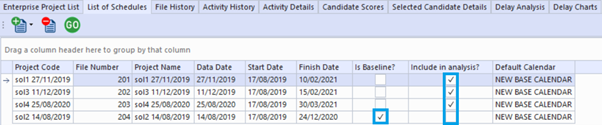
- Select files to be included in traceback
Navigation: Bottom tab bar > List of Schedules
Is Baseline? – Select the file to be used as the baseline schedule. You can only have one baseline file selected. Include in analysis? – Select the files that should be included in the traceback.
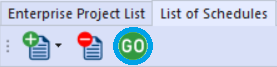
- Click ‘Go’ to reload Gantt based on file selections
Navigation: Bottom tab bar > List of Schedules Whenever you change the baseline or file to be included in analysis, the Gantt display will be cleared. The ‘Go’ button needs to be clicked to reload the files and perform necessary calculations to support activities in Logic+.
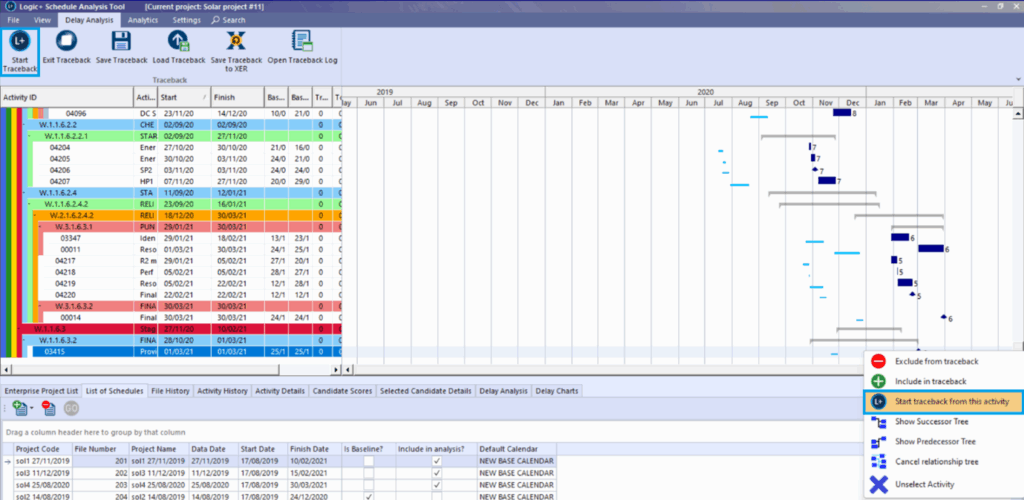
- Select start activity and run traceback
Navigation: Top tab bar > Delay Analysis > Start Traceback
Right click activity in Gantt view > Start traceback from this activity The traceback will start at the activity that is selected in the Gantt view. A grey highlight bar indicates which activity is currently selected.
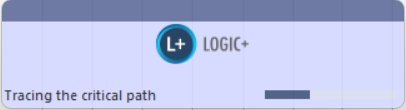
Progress dialog box appears indicating status of the traceback:
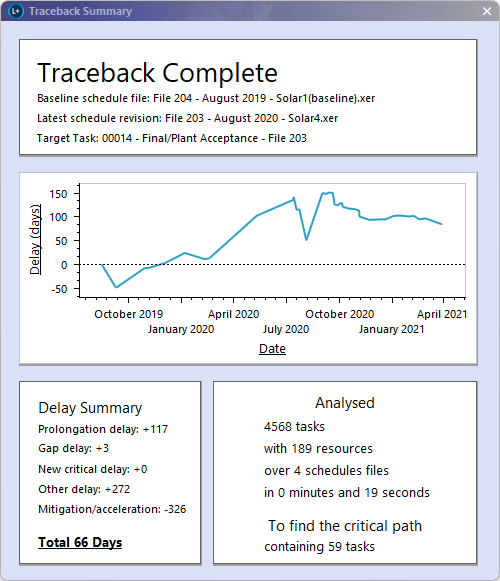
- Traceback Summary is displayed after traceback completes which displays details about files analysed to determine critical path and summary details of analysis and the target task from which the traceback was run.
- Delay Summary information is also shown.
This can also be accessed through Analytics (Analytics > Delay Report) and via the bottom tab bar (Delay Charts):