
Talk to an expert
Portal
Talk to an expert
  • Home
  • Products
    • Logic+ Software
    • SMART Technology
  • About
  • Contact
  • Home
  • Products
    • Logic+ Software
    • SMART Technology
  • About
  • Contact

How can we help you?

Overview

7
  • Settings
  • Analytics
  • Delay Analysis
  • Logic+ Toolbar
  • Gantt
  • List of Schedules
  • Schedule Viewer

Project Setup

5
  • Logic+ Schedule Analysis Tool
  • Schedule Files
  • Select Baseline
  • Name Your Project
  • Project Setup Wizard

Schedule Viewer

7
  • Delay Analysis
  • Activity Details
  • Activity History
  • File History
  • Project Schedule Files
  • Enterprise Project List
  • Using Logic+ to Import and Analyze Schedule Files

Gantt

8
  • Gantt Labels
  • Columns
  • Zoom
  • Sort
  • Date
  • Group
  • View
  • Gantt View

Traceback

9
  • Traceback Settings
  • Delay Analysis Menu Options
  • Candidate Score Categories and Descriptions
  • Additional Traceback Options
  • Analyse different activity
  • Generate alternate critical path
  • Critical Path Candidates
  • Traceback Analysis
  • Running a Traceback

Delay Analysis

2
  • Delay Charts
  • Delay Analysis Menu Options

Analytics

3
  • Analytics Reports
  • ChartViewer Options
  • Accessing the Analytics Menu

Settings

2
  • Traceback settings
  • Navigation

License Information

4
  • Connect with Logic+
  • Activate Logic+ Licence
  • Purchase Logic+ License
  • Licence Key Details
  • Home
  • Docs
  • Schedule Viewer
  • Project Schedule Files
View Categories

Project Schedule Files

1 min read

After opening a project, you can add or remove project schedule files as needed to support your analysis.

  • View Schedule Details

Basic details, such as the start date, are displayed for each schedule.

  • Nominate Schedule Files

Choose which files to include in the traceback analysis and select a baseline schedule.

Logic+ supports importing most schedule file formats, including XER and MPP.

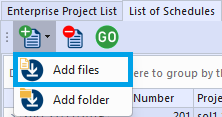
Add Schedule files

Navigation: Bottom tab bar > List of Schedules > Add files
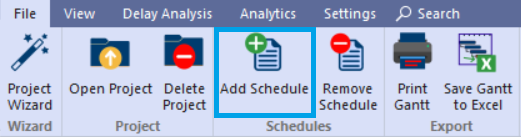
File (top tab bar) > Add Schedule
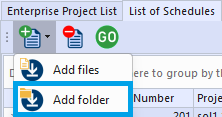
Add Schedule folder

Navigation: Bottom tab bar > List of Schedules > Add folder
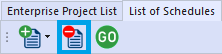
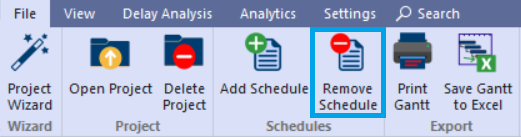
Remove Schedule files
Removes the schedule file from the project and the database. This does not delete or modify the original schedule file on disk.
Navigation: Bottom tab bar > List of Schedules > Delete schedule files
File (top tab bar) > Remove Schedule
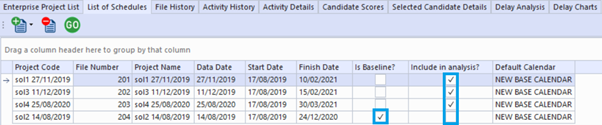
Select files to be included in analysis

Navigation: Bottom tab bar > List of Schedules

  • Is Baseline? – Select the file to be used as the baseline schedule. You can only have one baseline file selected.
  • Include in analysis? – Select the files that should be included in the analysis.
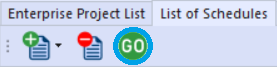
Reload Gantt based on file selection

Whenever you change the baseline or file to be included in analysis, the Gantt display will be cleared. The ‘Go’ button needs to be clicked to reload the files and perform necessary calculations to support activities in Logic+.

Navigation: Bottom tab bar > List of Schedules

  • Click ‘Go’ to reload Gantt based on file selections
Still stuck? How can we help?

How can we help?

Updated on April 28, 2025

Head Office

Level 7, 303 Coronation Drive
Milton QLD 4064 Australia

Home     |     Logic+ Software     |     Privacy Policy     |     Terms & Conditions     |     Documentation

© 2025 LWARE Pty Ltd  |  Digital Marketing by Focused Marketing

  • Follow