
Talk to an expert
Portal
Talk to an expert
  • Home
  • Products
    • Logic+ Software
    • SMART Technology
  • About
  • Contact
  • Home
  • Products
    • Logic+ Software
    • SMART Technology
  • About
  • Contact

How can we help you?

Overview

7
  • Settings
  • Analytics
  • Delay Analysis
  • Logic+ Toolbar
  • Gantt
  • List of Schedules
  • Schedule Viewer

Project Setup

5
  • Logic+ Schedule Analysis Tool
  • Schedule Files
  • Select Baseline
  • Name Your Project
  • Project Setup Wizard

Schedule Viewer

7
  • Delay Analysis
  • Activity Details
  • Activity History
  • File History
  • Project Schedule Files
  • Enterprise Project List
  • Using Logic+ to Import and Analyze Schedule Files

Gantt

8
  • Gantt Labels
  • Columns
  • Zoom
  • Sort
  • Date
  • Group
  • View
  • Gantt View

Traceback

9
  • Traceback Settings
  • Delay Analysis Menu Options
  • Candidate Score Categories and Descriptions
  • Additional Traceback Options
  • Analyse different activity
  • Generate alternate critical path
  • Critical Path Candidates
  • Traceback Analysis
  • Running a Traceback

Delay Analysis

2
  • Delay Charts
  • Delay Analysis Menu Options

Analytics

3
  • Analytics Reports
  • ChartViewer Options
  • Accessing the Analytics Menu

Settings

2
  • Traceback settings
  • Navigation

License Information

4
  • Connect with Logic+
  • Activate Logic+ Licence
  • Purchase Logic+ License
  • Licence Key Details
  • Home
  • Docs
  • Traceback
  • Critical Path Candidates
View Categories

Critical Path Candidates

< 1 min read

It is the top ranked activity from the candidate scores that is used on the critical path. You can select any activity on the critical path to see the top ranked candidate as well as the alternate candidates and analyse the scoring for all the attributes.

Analyse top ranked candidate

  • Click on an activity on the critical path.

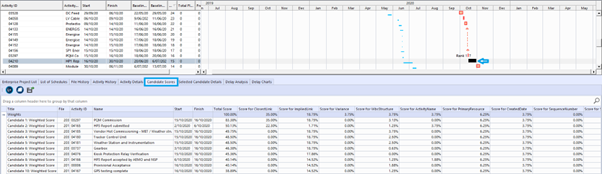
The selected activity row will be highlighted in grey and the activity flashes to indicate it is selected for candidate analysis.

  • On the bottom bar tab, click on Candidate Scores tab

The top 10 predecessor candidate scores for the selected activity are shown. The candidates are coloured orange, higher scores correspond to darker colours.

For each candidate, the source file, activity, score for each attribute and total score are displayed.
Analyse alternate candidates

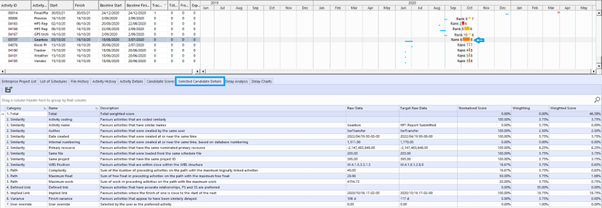
  • You can also scroll through the Gantt view to see the alternate candidates for the selected activity:

To see the detail of each candidate, click on the ranked candidate predecessor in the Gantt view and the details appear in the bottom tab bar, Selected Candidate Details tab.

Still stuck? How can we help?

How can we help?

Updated on April 24, 2025

Head Office

Level 7, 303 Coronation Drive
Milton QLD 4064 Australia

Home     |     Logic+ Software     |     Privacy Policy     |     Terms & Conditions     |     Documentation

© 2025 LWARE Pty Ltd  |  Digital Marketing by Focused Marketing

  • Follow