
The following traceback settings are available to control how the traceback logic determines the critical path.
Tip: The traceback settings can only be changed when there are no active tracebacks. Select Delay Analysis > Exit Traceback first.
Navigation: Settings > Traceback
Traceback Weightings #
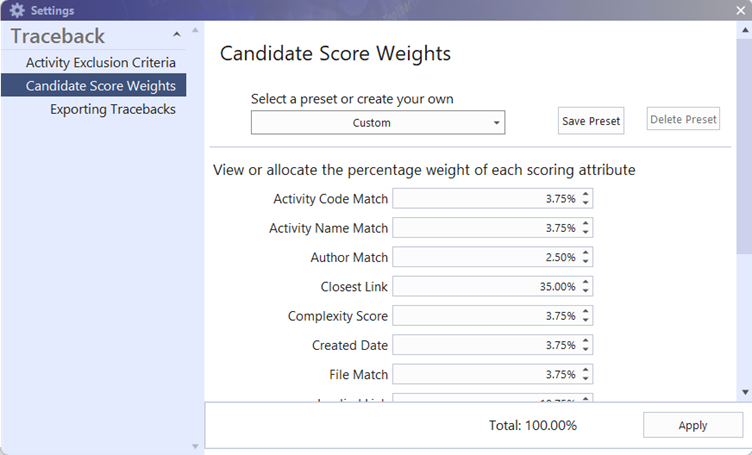
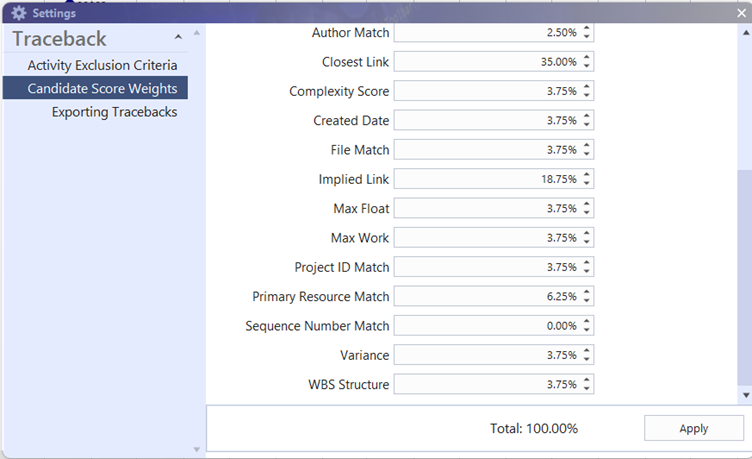
Traceback Weightings are used to control how the candidate scores are calculated based on the key attributes that determine logical and implied relationships between activities.
Tip: The last preset selected will default until a new present is used.
- Preset options:
- Default:
This is the default used for traceback if there is no custom weighing selected.
- Create custom weightings:
Change weighting then click ‘Save Present’.
Enter a name for the custom traceback weighting.
- Custom weighting:
Any custom weightings created will appear as an option in the ‘Select a preset dropdown’.
Traceback Options #
Traceback Options control which activities are excluded and preferences if traceback must select activities from an earlier data date file.
Activity Exclusion Criteria When performing a Traceback, activity criteria can be set prior to performing a traceback that ensures certain activities are excluded.
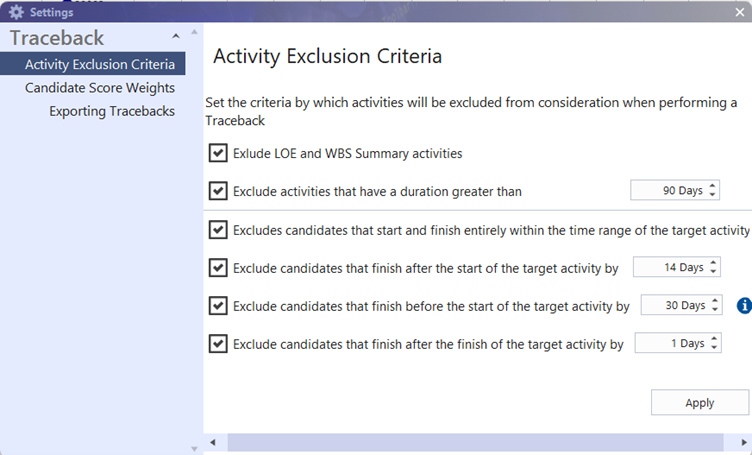
Please Note: If the option to Exclude candidates that finish before the start of the target activity by is selected

When all activities are excluded, the exclusion period for this criterion is extended. As a result, activities may appear that finish earlier than the target activity by a larger margin than the value specified in this criterion.
Candidate Score Weights #
New presets can be created and customized, existing presets can be accessed within Candidate Score Weights when saved, with the option to delete presets when desired.
Exporting Tracebacks #
Export the Traceback to an XER file using the three labelling methods for activities
Choose the desired Traceback option, select Apply to commence the download.
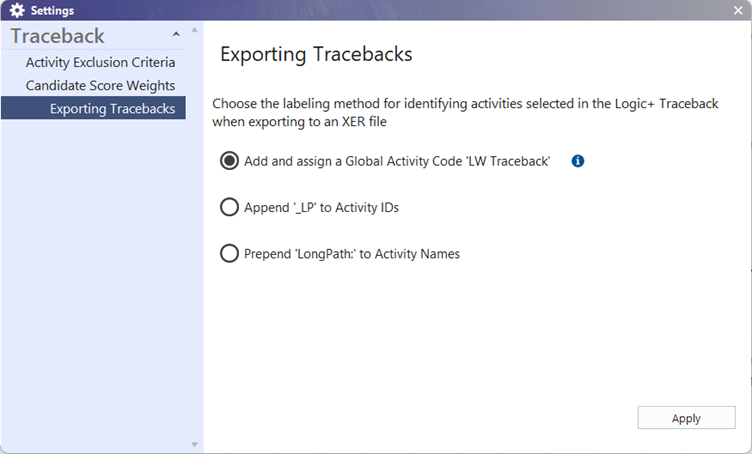
The LW Traceback Activity code will categorise activities under two types
Cat 1: Activities selected directly in the Traceback of the file you selected
Cat 2: Activities selected in the Traceback but belonging to a different file than the one you selected

Changes Applied confirm the updated method for future Exporting of Traceback within the selected project once Apply is selected.